 Docs
Docs
Devices
Point a whole household or fleet of devices at encrypted DNS, each under its own address, and see privately where their lookups go.
The console shows only the names a device asks to reach, never what it does there. Screens here are a demo household with illustrative data and redacted tokens.
1 · Your devices
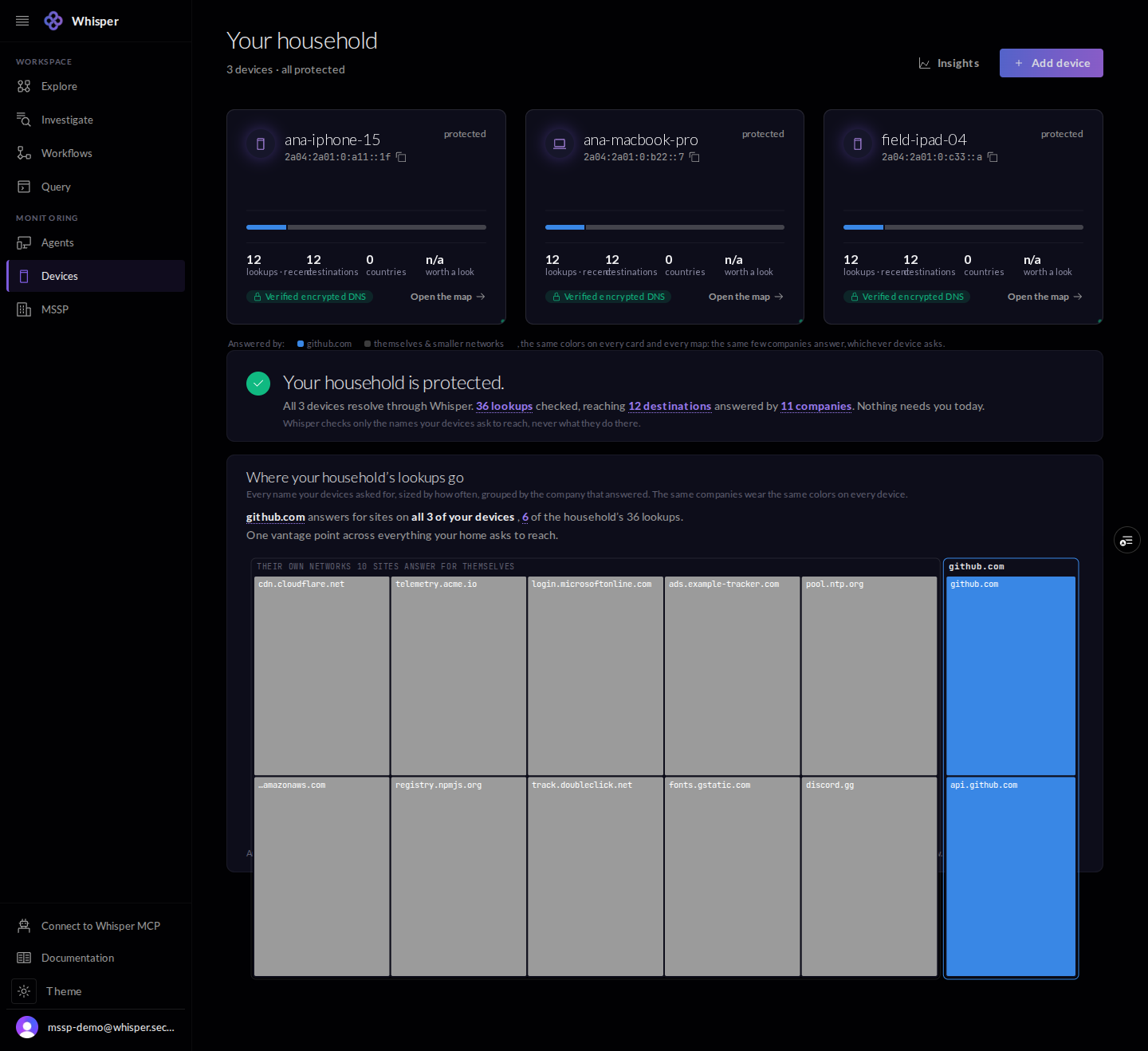
The Devices page lists each device with its own address and a protected badge, over a private map of which companies answer the household lookups.
2 · Add a device
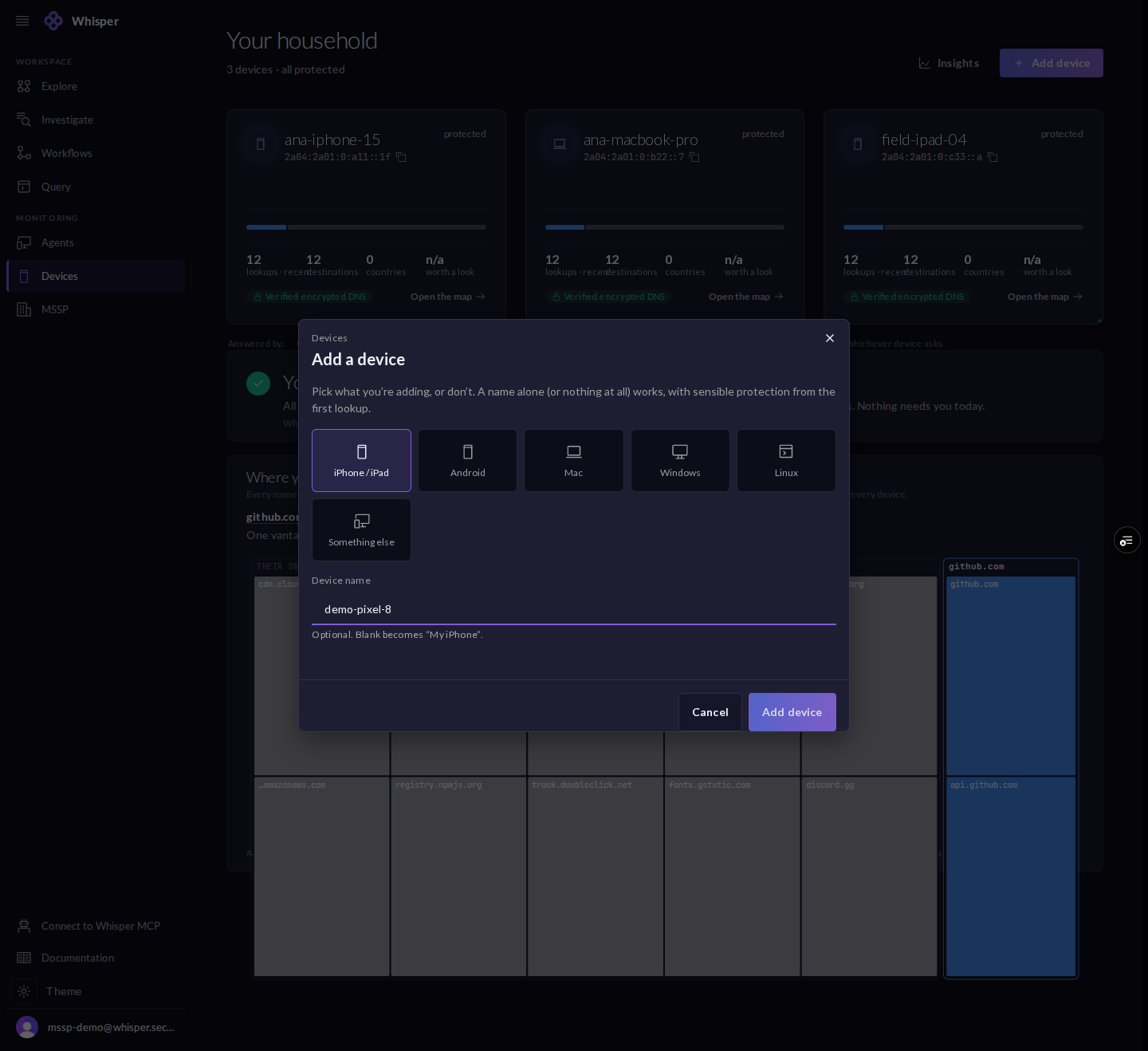
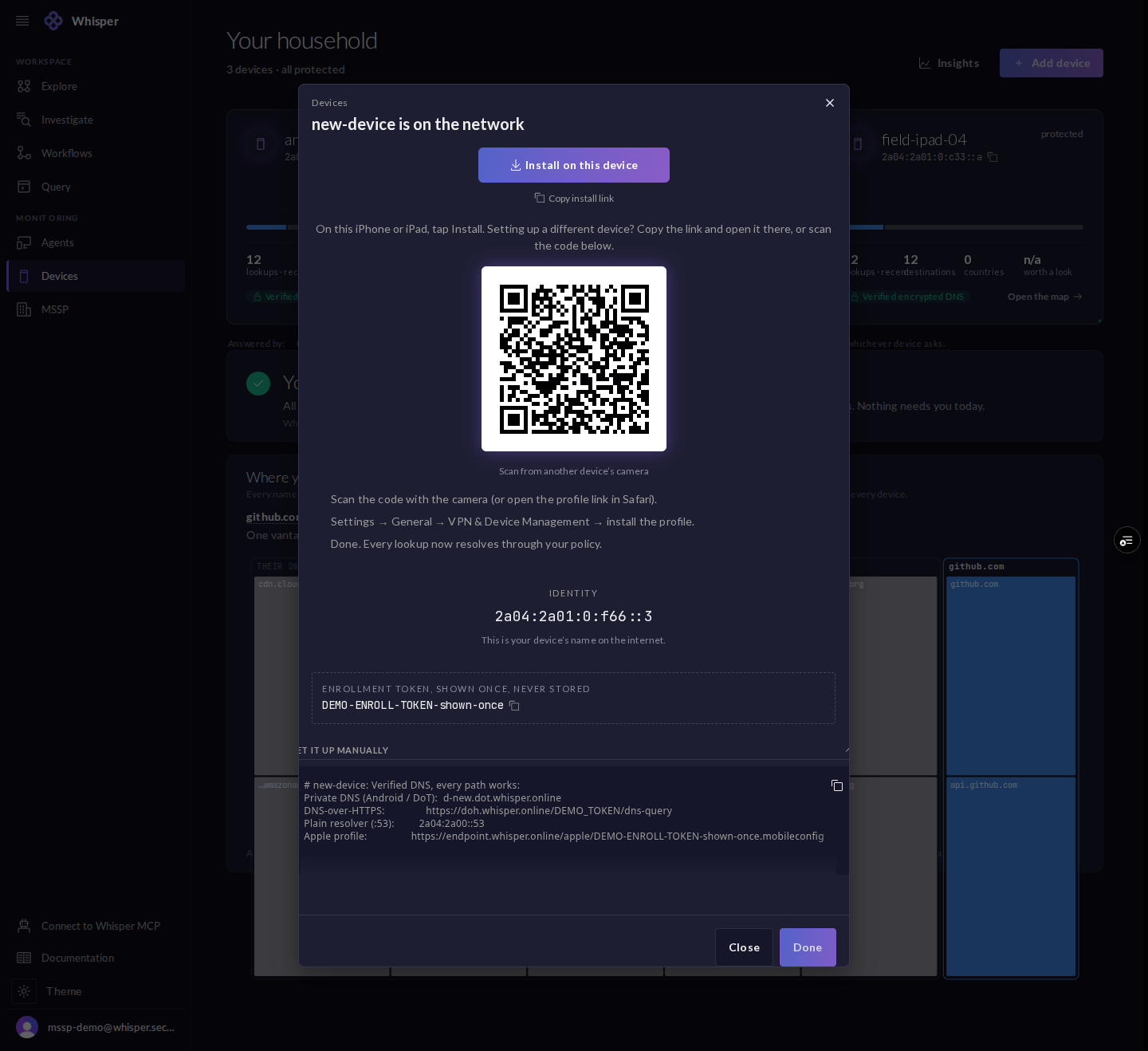
Adding a device is a two-step dialog: pick a platform and name it, then install by scanning a QR code or opening a profile link. The device comes up with its own identity address.
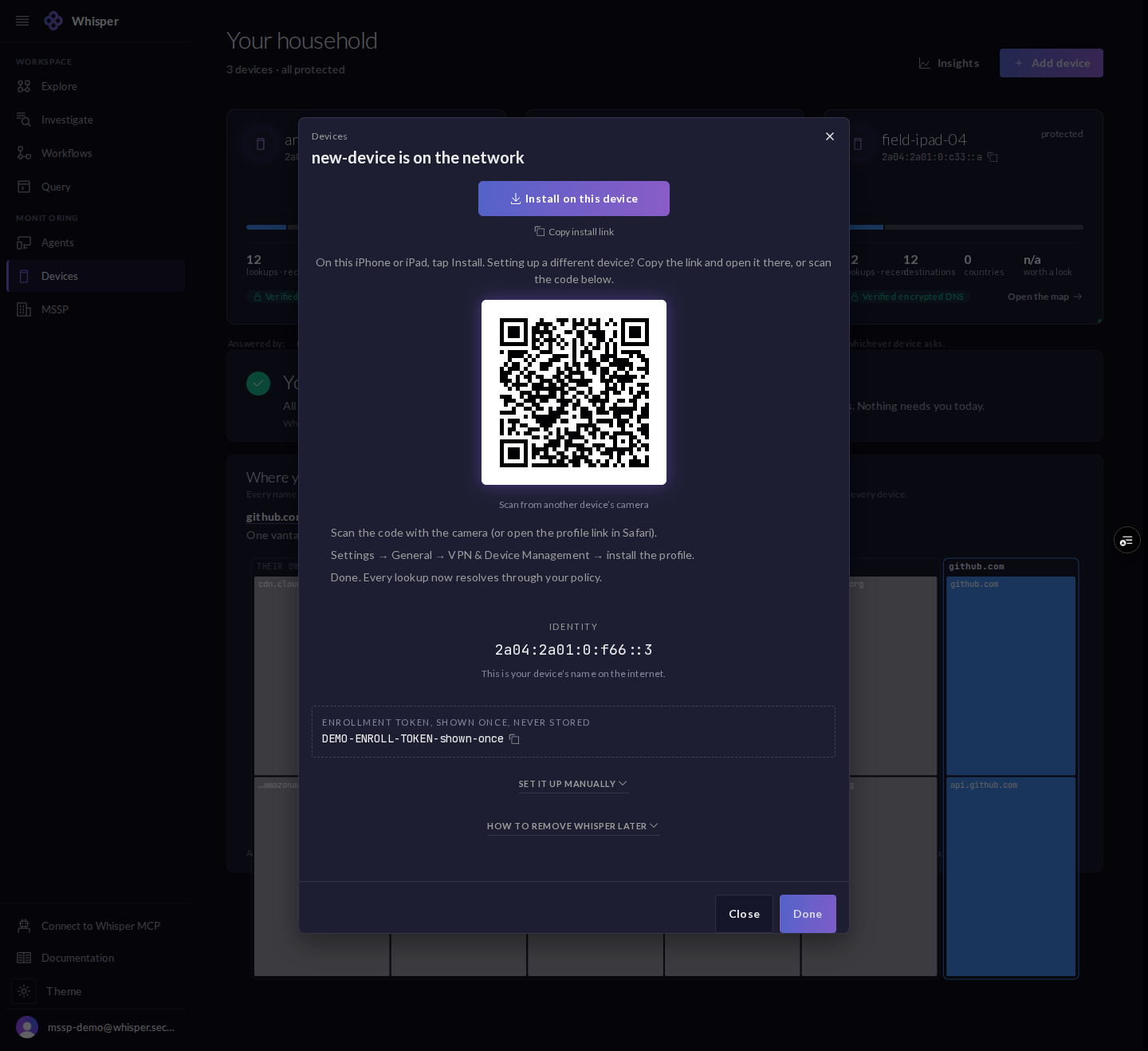
If you would rather set it up by hand, the manual panel lists every endpoint the profile configures for you: a Private DNS host, a DoH URL, a resolver address, and the profile link.
3 · A device up close
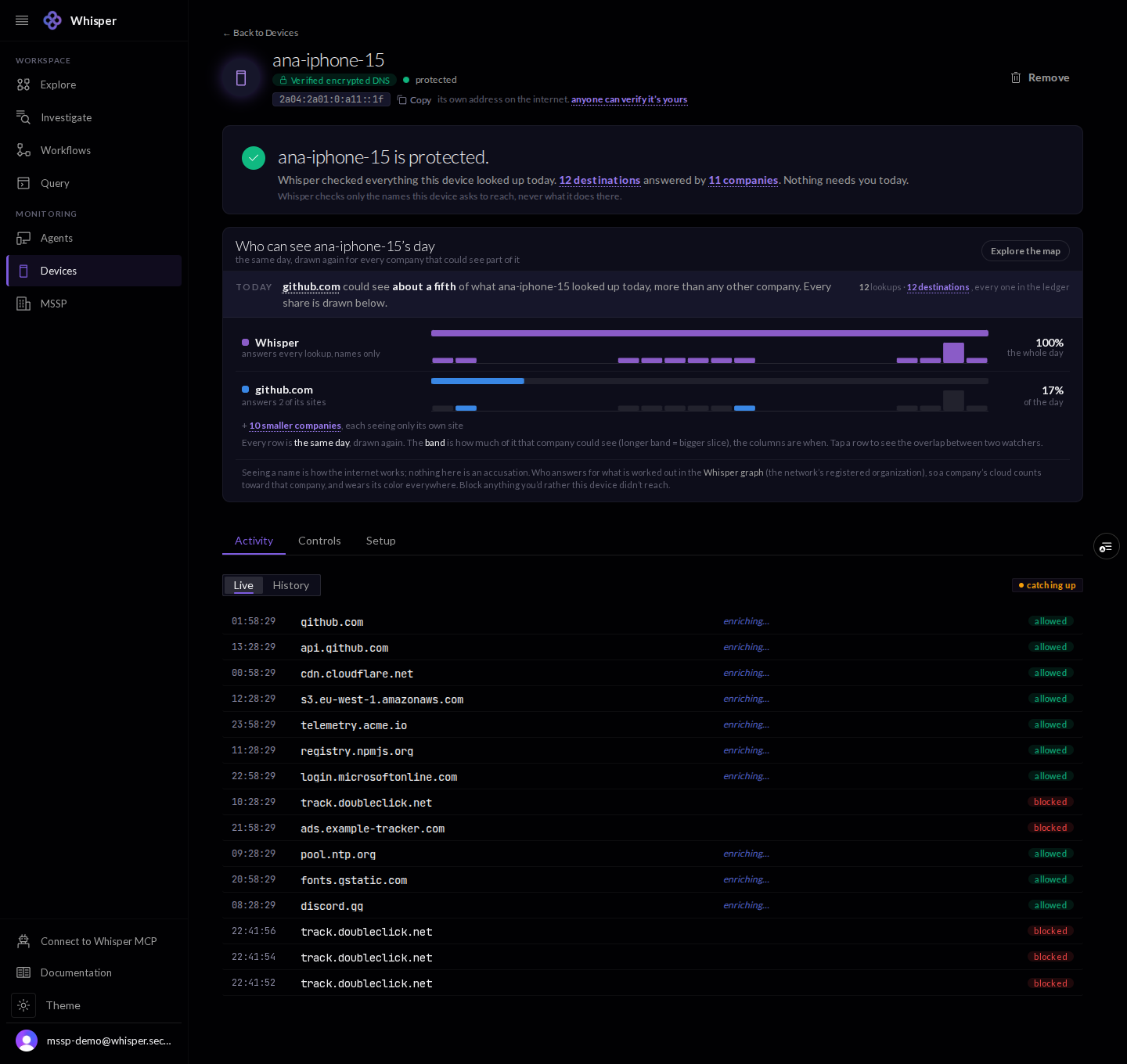
A device page opens on its protected summary, a per-company view of who could see its day, and a live feed of the lookups it made, each marked allowed or blocked.
4 · Controls
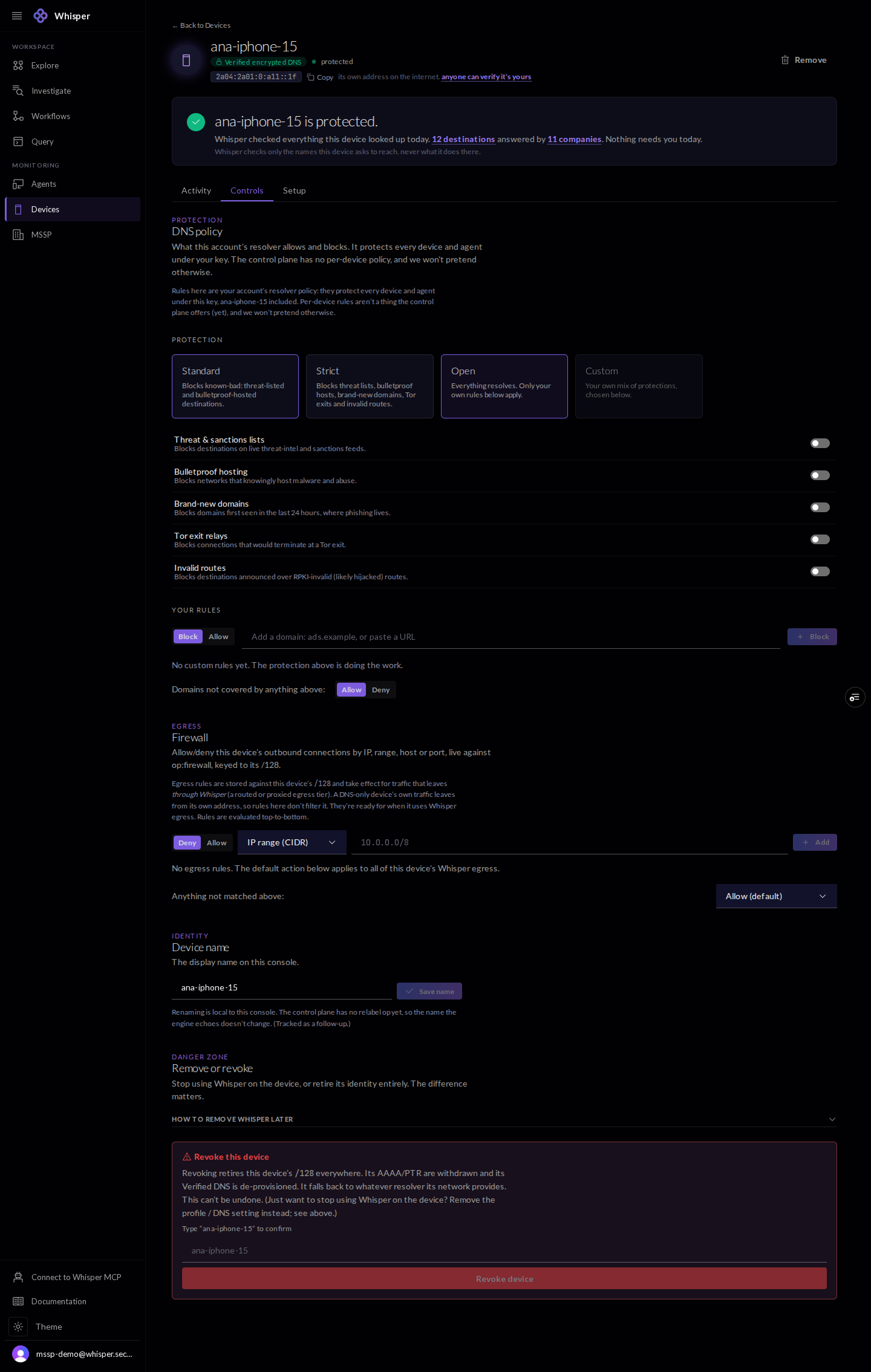
Controls hold the account resolver policy (presets, toggles, and your own rules) and a per-device egress firewall keyed to the address. The console is candid about the boundary: resolver policy protects every device under your key today, not one device at a time.
5 · Setup and keyless proof
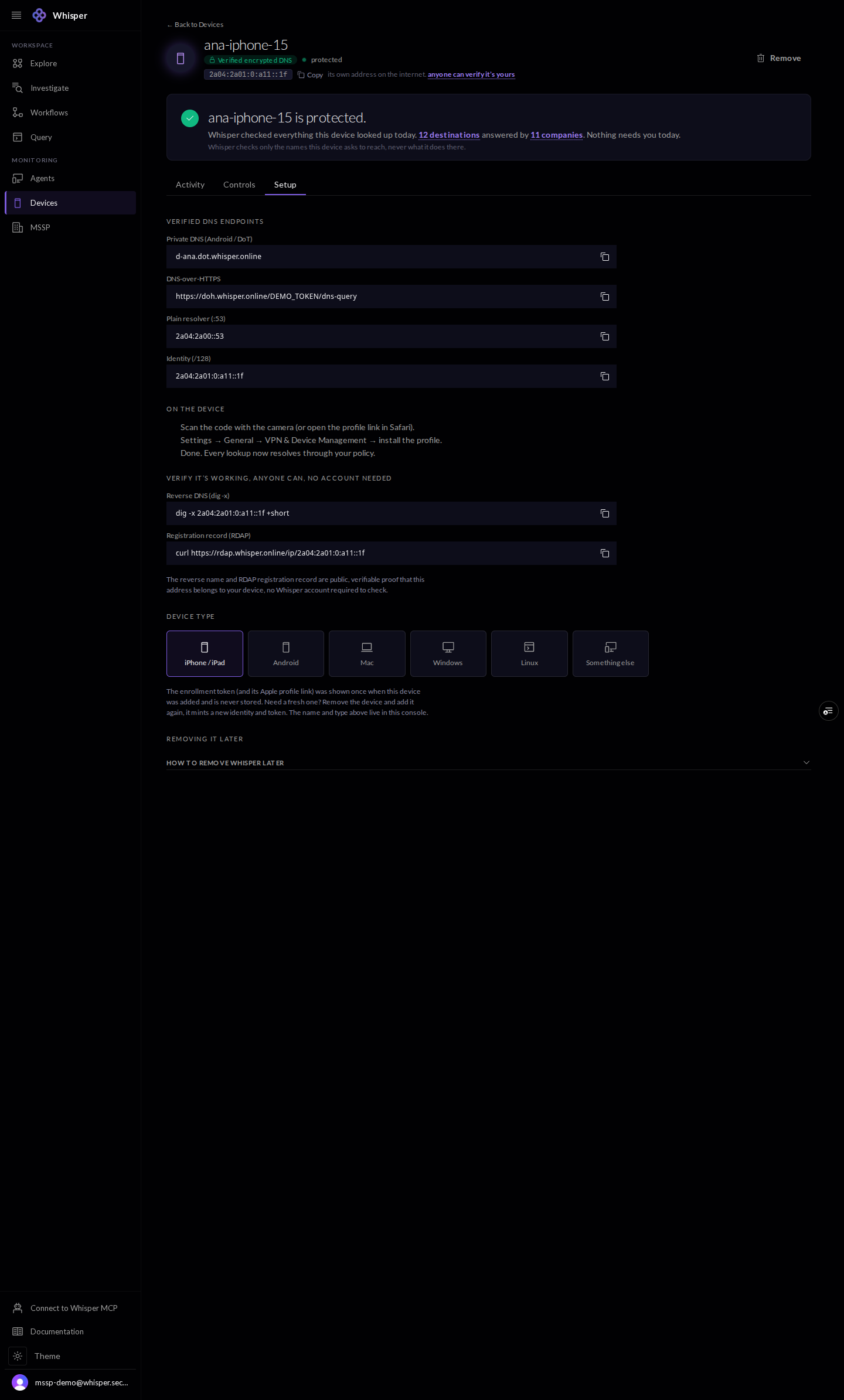
The Setup tab carries the device endpoints and, more usefully, the exact commands anyone can run to confirm the address is the device: a reverse-DNS lookup and the public RDAP record. No account is needed to check.
6 · Insights
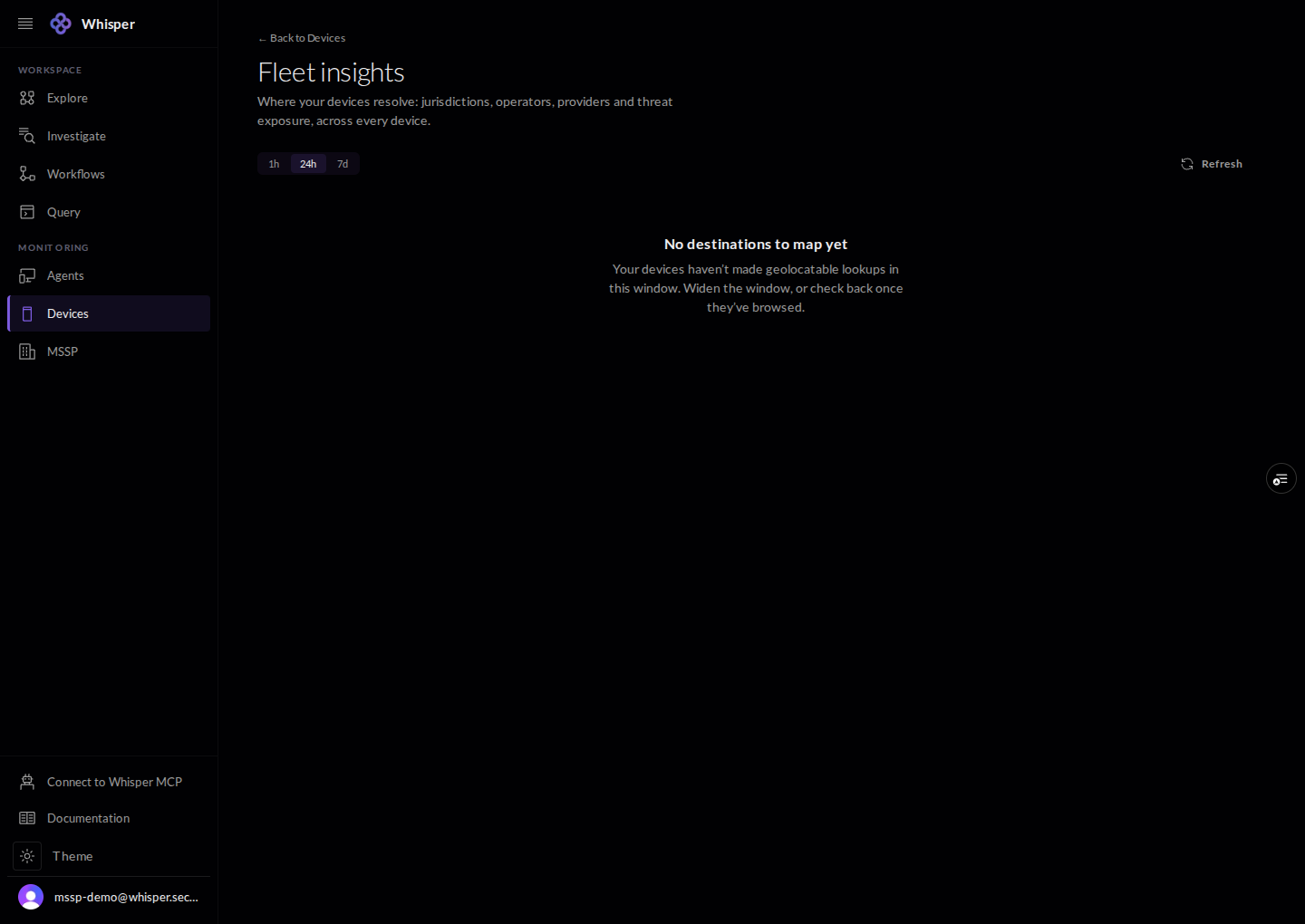
Insights maps where the devices resolve, by jurisdiction, operator, and provider, across the fleet.
7 · Remove a device
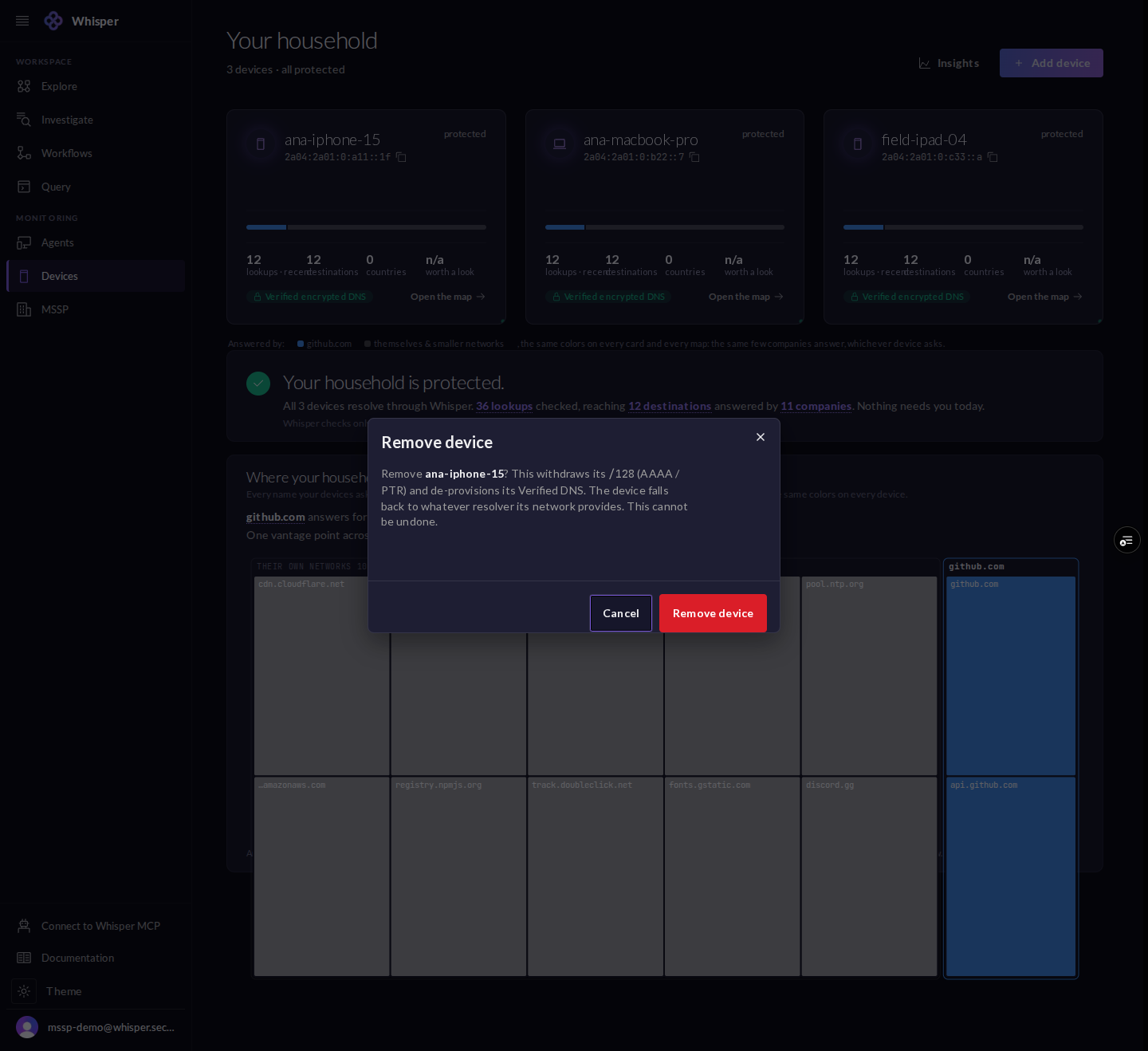
Removing a device withdraws its address, both the AAAA and the PTR, and de-provisions its encrypted DNS. The device falls back to whatever resolver its network provides.